
 JNS Photo Gallery
Finally, all your old photos in one place.
Every photo you own, found in seconds.
JNS Photo Gallery gathers the photos and videos scattered across your drives, old phones and backups into one library, then finds any of them by place, year, person, or what is in the picture.
Free. Windows 10 and 11. English and Greek. Coming to the Microsoft Store.
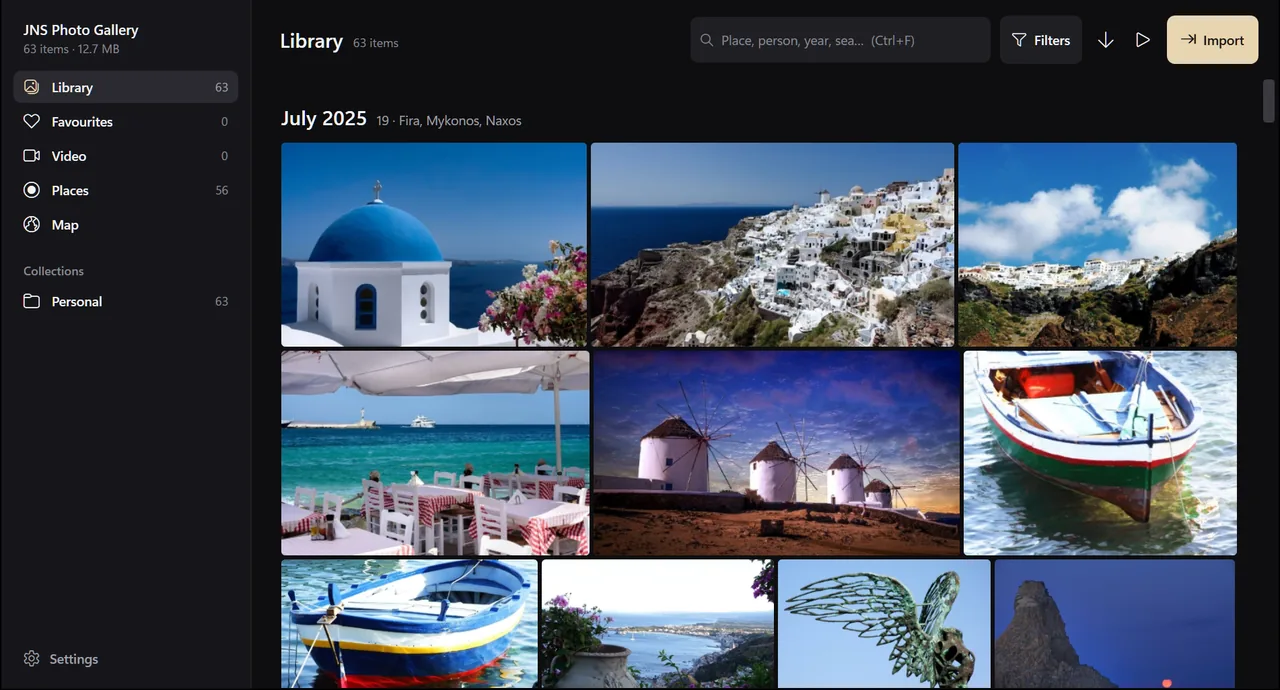
How it works
- 1
Open it, and it finds your photos
A short setup scans every drive, shows what it found, suggests where the library and its backup go, and brings in the drives you pick. The originals are never changed or deleted.
- 2
It does the sorting
Dates, places from GPS, faces and what is in each picture, all worked out on your own computer.
- 3
Type what you remember
"Sea", "wedding", a town, a year, a camera, a name. Or open a photo and see the ones that look like it.
Set up in a few clicks
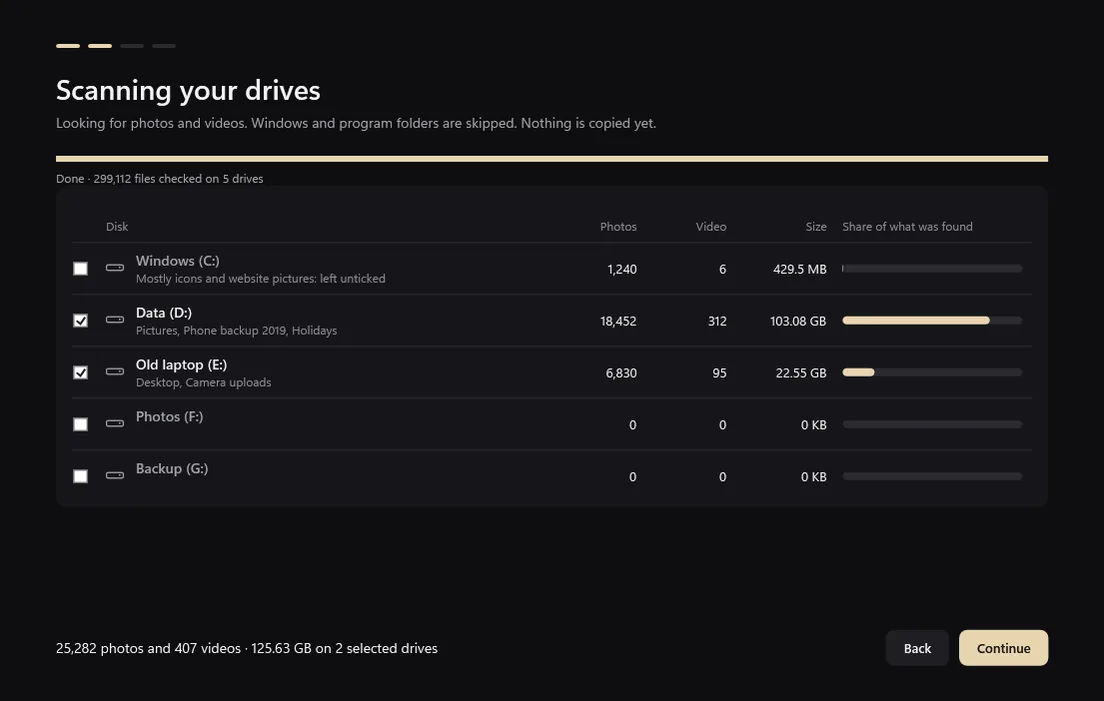
There is nothing to configure. The first start scans all your drives for photos and videos, including old backups and phone copies, and shows what each one holds. It then suggests where the library and its backup should go, with the space on every drive, and imports the drives you tick while you keep using the app.
- Every drive scanned, nothing copied until you say so
- Library and backup placed for you, with the space shown
- Pause, minimise or stop the import at any time
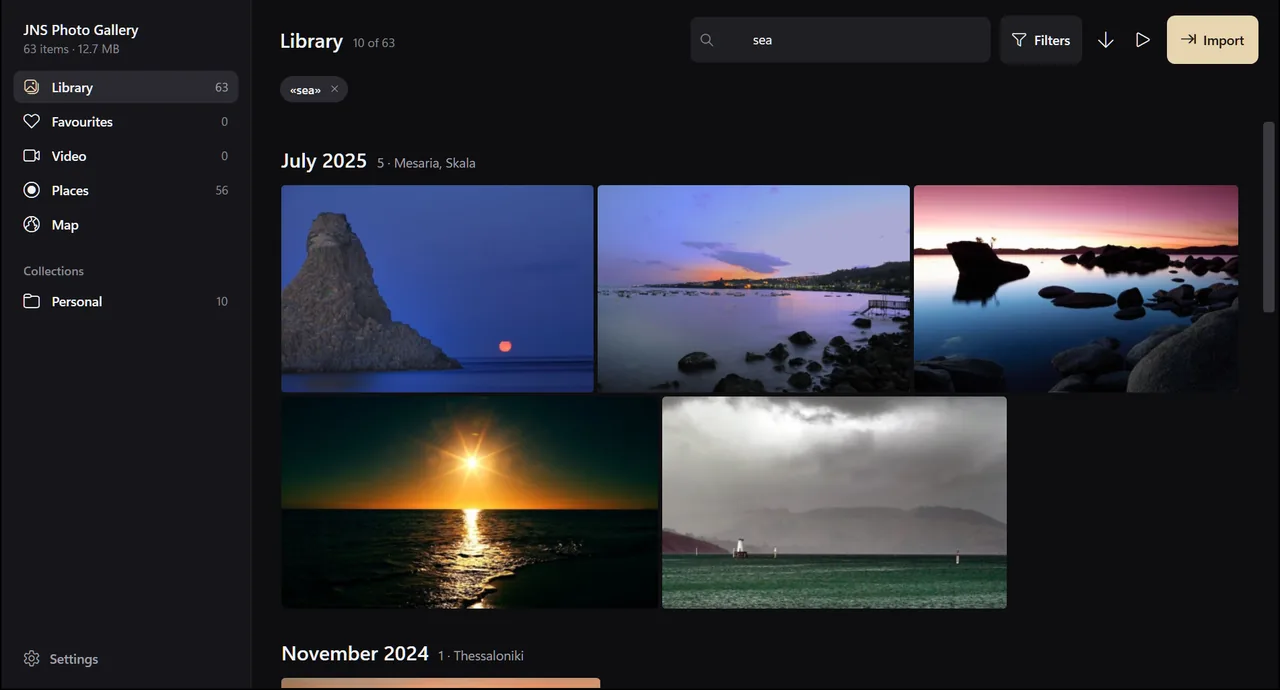
Search for what is in the picture
Type "sea" and you get the photos with sea in them, whatever their file name. The app recognises the content of each photo on your computer, and the filters on the left narrow it down by year, place or camera.
- Content, place, year, person, camera, folder
- English and Greek words both work
- Nothing is sent online to do it
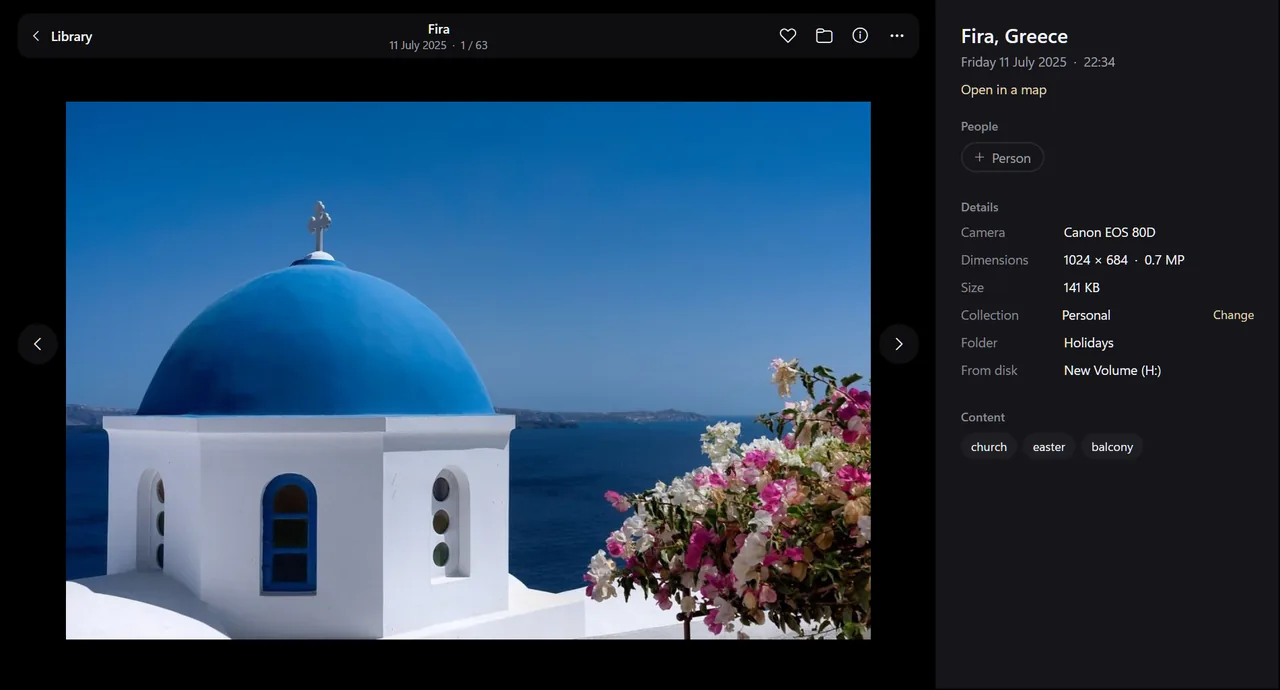
Everything about a photo, beside it
Open any photo to see where and when it was taken, what is in it, the camera, the size and where the file lives. Mark it as a favourite, name the people in it, or see the photos that look like it.
- Place name from GPS
- Content labels and people
- Similar photos in one click
Your trips on a map
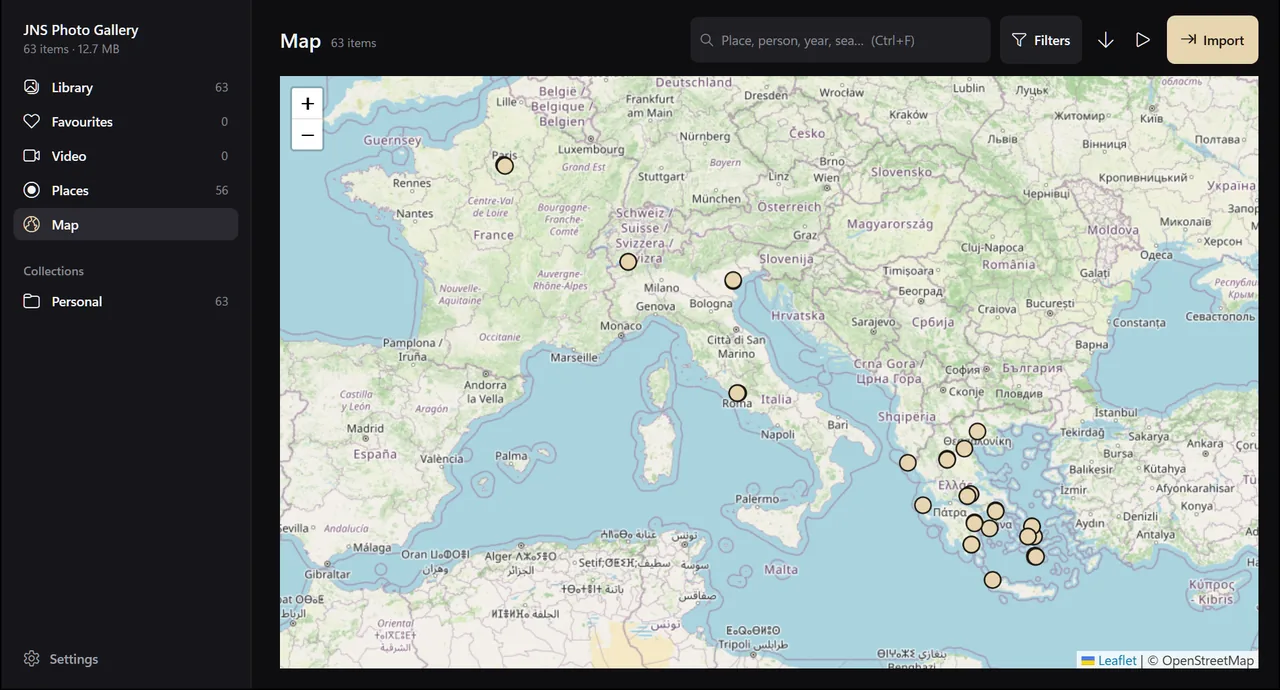
Photos with GPS appear on a map, one marker per spot. Click a marker to see the photo and open it. The map is the one part of the app that goes online, to draw the map itself; your photos stay on your computer.
Every screen, explained
The guide walks through the app in the order you meet it: the first start, importing, selecting, the right-click menu, search, collections, Recently deleted, backup, freeing up space, settings and the keyboard shortcuts.
What it does
Everything in one window, photos and videos together.
- Easy setup
- The first start finds the photos on every drive and places the library and its backup for you.
- Search
- By place, year, person, camera or what is in the photo.
- People
- Faces are grouped automatically. Give a group a name once and find every photo of that person.
- Places
- Photos with GPS get a place name and appear on a map, without your photos being sent anywhere.
- Timeline
- Everything in date order, month by month.
- Similar photos
- Open one picture and see the ones that look like it.
- Duplicates
- Recognised by content, so the same photo saved in five places is kept once.
- Backup
- Optionally a second copy of the whole library on another drive, updated on every import.
- Safe delete
- Deleted photos wait in Recently deleted, where they can be restored. Every action asks first.
- Collections
- Keep personal photos, work screenshots and game captures apart, each in its own folder.
Private by design
There is no account and no cloud. Face grouping and content recognition run on your own computer, and the results are saved inside your library folder. The app goes online only to draw the map.
- Account
- None
- Uploads
- None: your photos never leave your computer
- Analytics
- None
- Face grouping
- Computed and stored on your computer
- Internet
- Only for the map
What's new
Version 1.0.0
- First version.
- Easy first start: a short setup scans every drive for photos and videos, suggests where the library and its backup go, with the space on each drive, and imports the drives you choose in one go.
- The import shows its progress in full: stages, drives filling up, photos and videos by year, the photos just added. It can be paused, or minimised to a small card.
- A right-click on an open photo shows every action for it; the mouse Back button closes it.
- Import a folder or a whole drive into one library: every photo and video, small ones and GIFs too, with duplicates recognised by content.
- Move photos to another collection, or to a new one, from the selection bar, the right-click menu or the viewer.
- Recently deleted: deleted photos can be restored as they were; deleting them for good sends the files to the Windows Recycle Bin.
- Search by place, year, person, camera or what is in the picture.
- Filter by the disk the photos were imported from, recognised even when an external disk gets another letter.
- Free up space: check any disk or folder for photos and videos already in the library and its backup, identical byte for byte, see how much space they take, then delete them from there. Works for imports done earlier too, and asks for the BitLocker password of a locked disk.
- Automatic face grouping, a map of geotagged photos, a timeline and similar photos.
- Optional second copy of the library on another drive.
- A quiet, consistent design that puts the photos first: one set of icons, filters in their own panel, rare actions in a menu.
- English, with Greek available in Settings.
Details
| Platform | Windows 10 (version 2004 or later) and Windows 11, 64-bit |
|---|---|
| Price | Free |
| Languages | English, Greek |
| Version | 1.0.0 |
| Support | support@jnssoftware.com |
On its way to the Microsoft Store
The first version is built and its Store listing is being prepared. This page will link to it the day it is live. Questions until then go to support@jnssoftware.com.